
TuneLogic manual
Everything you need from buying a licence to reviewing your first datalog. TuneLogic gives you proven PureBoost base maps for your engine and lets you adjust them within safe limits — you create the .mhd file yourself and flash it with the MHD Flasher app.
1. Before you start
- A supported BMW engine and DME software. Today that is the N54 with the DME software I8A0S, IJE0S, IKM0S or INA0S. The MHD Flasher app shows which software your DME runs.
- The MHD Flasher app with an MHD licence for your car and a compatible OBD dongle or cable.
- The MHD+ patch installed on the car. TuneLogic files need the MHD+ patch in the car — install it with the MHD Flasher app before you flash.
- The right hardware for your stage — see Create a project.
2. Buy a licence
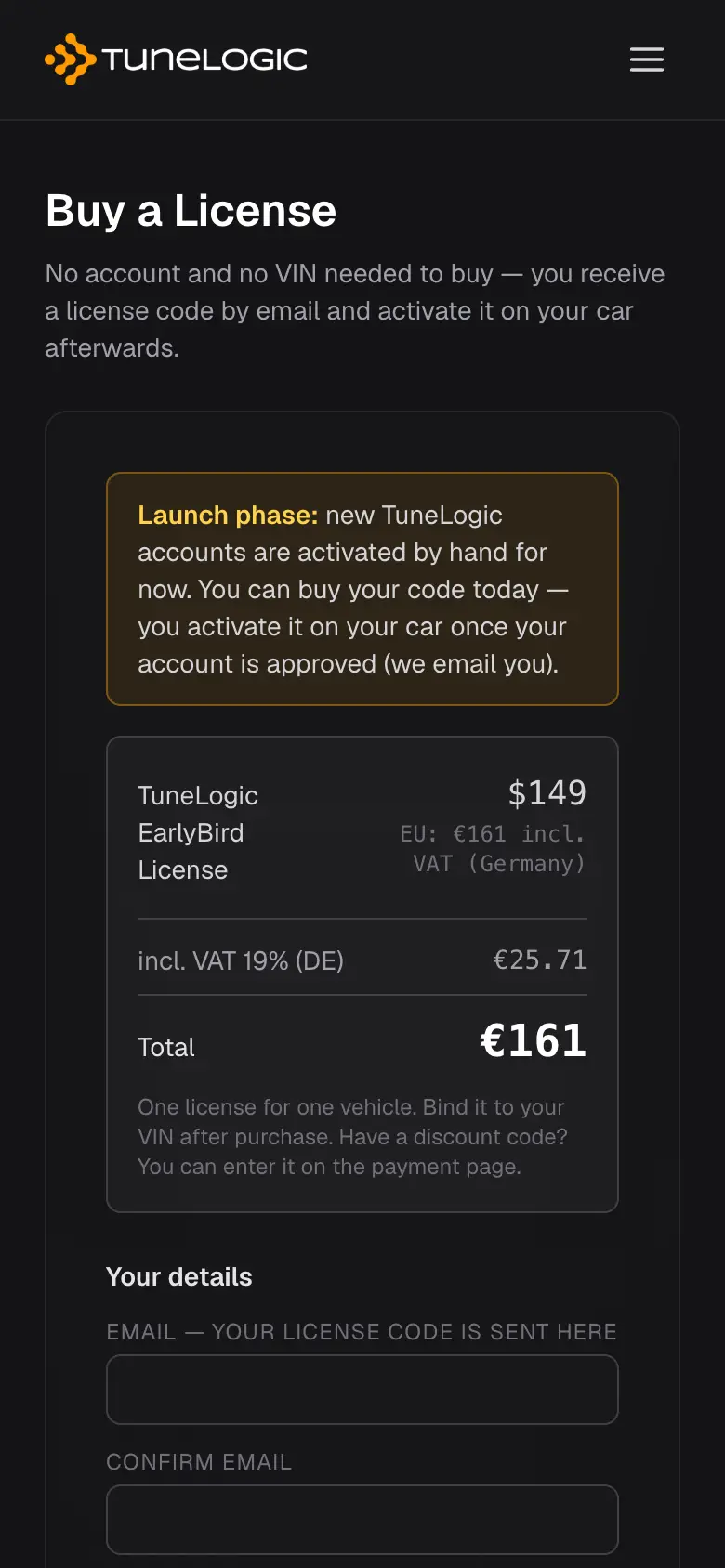
One licence is for one car. You buy it on tunelogic.de/buy — no account and no VIN needed yet. Enter your email address (twice — the licence code is sent there) and your invoice address. Choose your country to see your final price: in the EU it is in euros and includes your country's VAT, elsewhere the price is in US dollars. EU businesses with a valid VAT ID pay no VAT (reverse charge).
You pay on Stripe's page; discount codes go there too. Afterwards your licence code (formatTL-XXXX-XXXX-XXXX) is shown on screen and sent by email. The code is not tied to a car yet and does not expire — you can also give it to someone else until it is activated.
3. Create your account
Register with your email address and a password (at least 8 characters, with a digit and a special character). A short onboarding follows: what TuneLogic can and cannot do (boost is capped by your MAP sensor, ignition at full load is capped at 16°, emission-related fault codes can never be muted), a few questions about your goals, and a final confirmation. You can only create tune files after it.
- Confirm your email address — we send you a link. Adding a car needs a confirmed address, because the licence is bound to it for good and we must be able to reach you.
- Launch phase: new accounts are activated by hand for now. Until then you can look around and use the log viewer; you get an email as soon as your account is approved.
4. Add your car
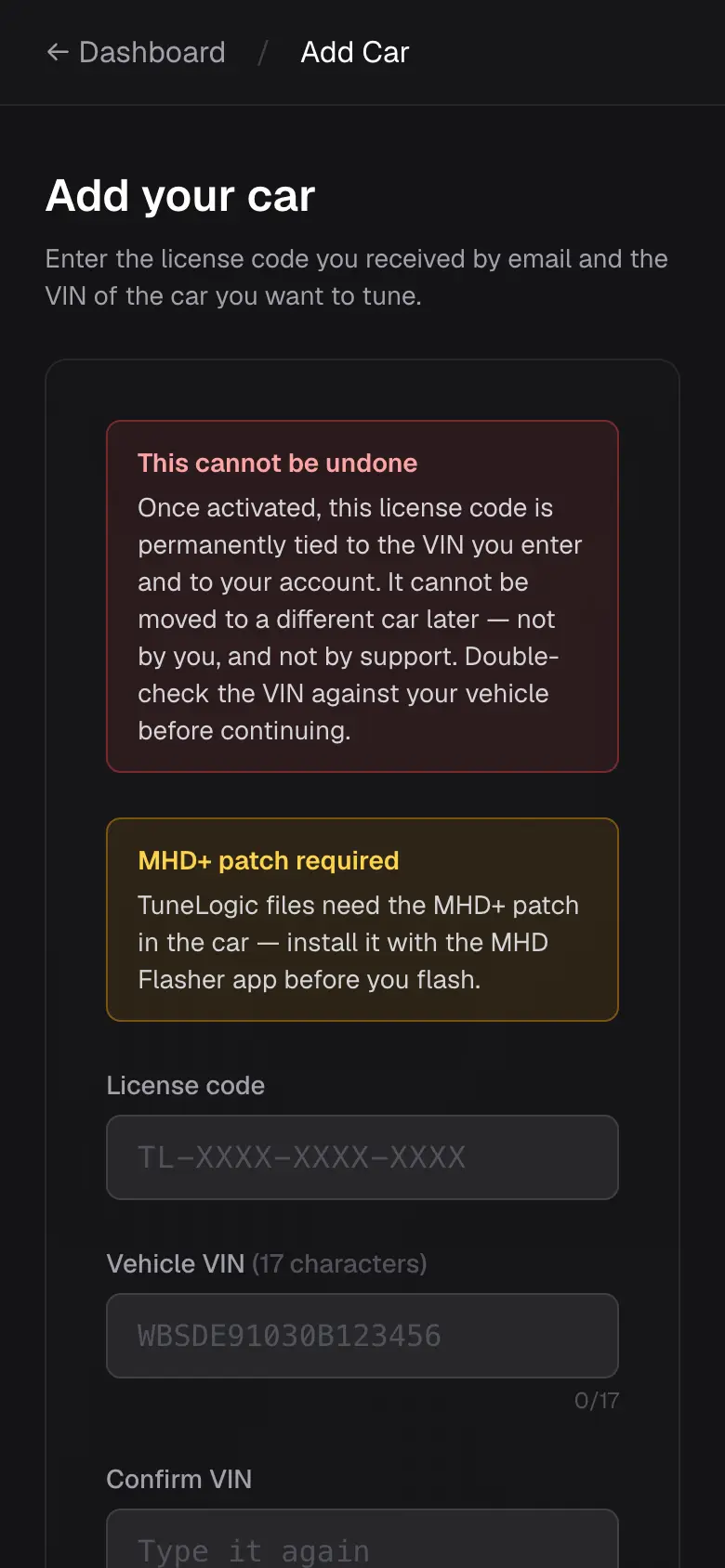
On the dashboard choose + Add Car. Enter your licence code, the VIN (17 characters, twice) and an optional name for the car, tick the confirmation and choose Activate license permanently.
5. Create a project
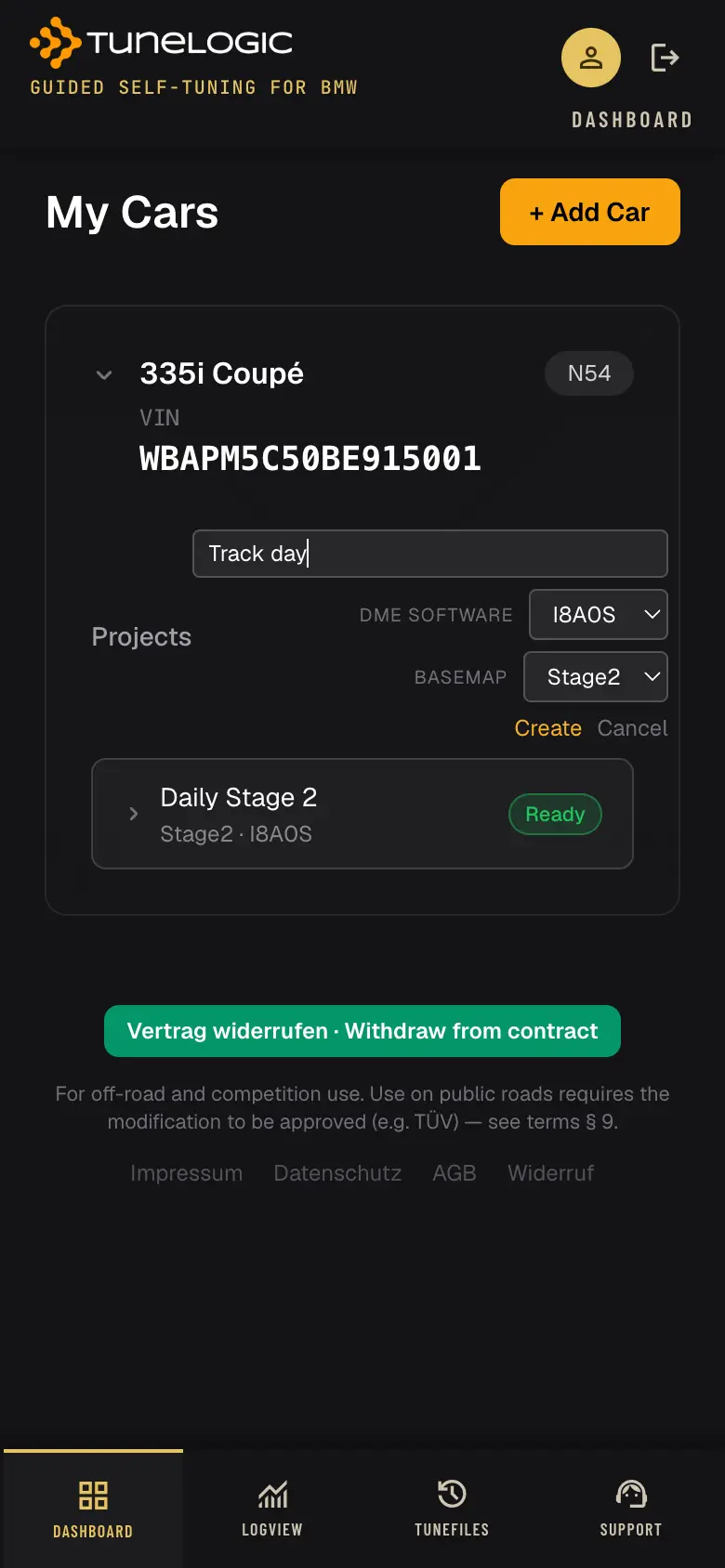
A project is one tune for your car — for example “Daily” and “Track day”. Open your car on the dashboard, choose + New Project, give it a name, and pick:
- DME software — the software your DME runs (shown in the MHD app).
- Basemap — the stage that matches your hardware:
| Stage | Hardware | Up to |
|---|---|---|
| Stage 1 | Stock (up to 360 hp); upgraded intercooler for the full figure | 400 hp · 540 Nm |
| Stage 2 | Upgraded intercooler, downpipes | 430 hp · 560 Nm |
| Stage 3 | Upgraded turbos, intercooler, downpipes, low-pressure fuel pump, 3.5 bar N20 TMAP sensor activated in MHD | 470 hp · 650 Nm |
Figures are “up to” values with higher-octane fuel on well-maintained cars, not a guarantee. Stage 1 and 2 are ready to go with the right settings; Stage 3 is a base map to be refined for your car. The fuel you run is chosen later, in the editor.
6. The editor
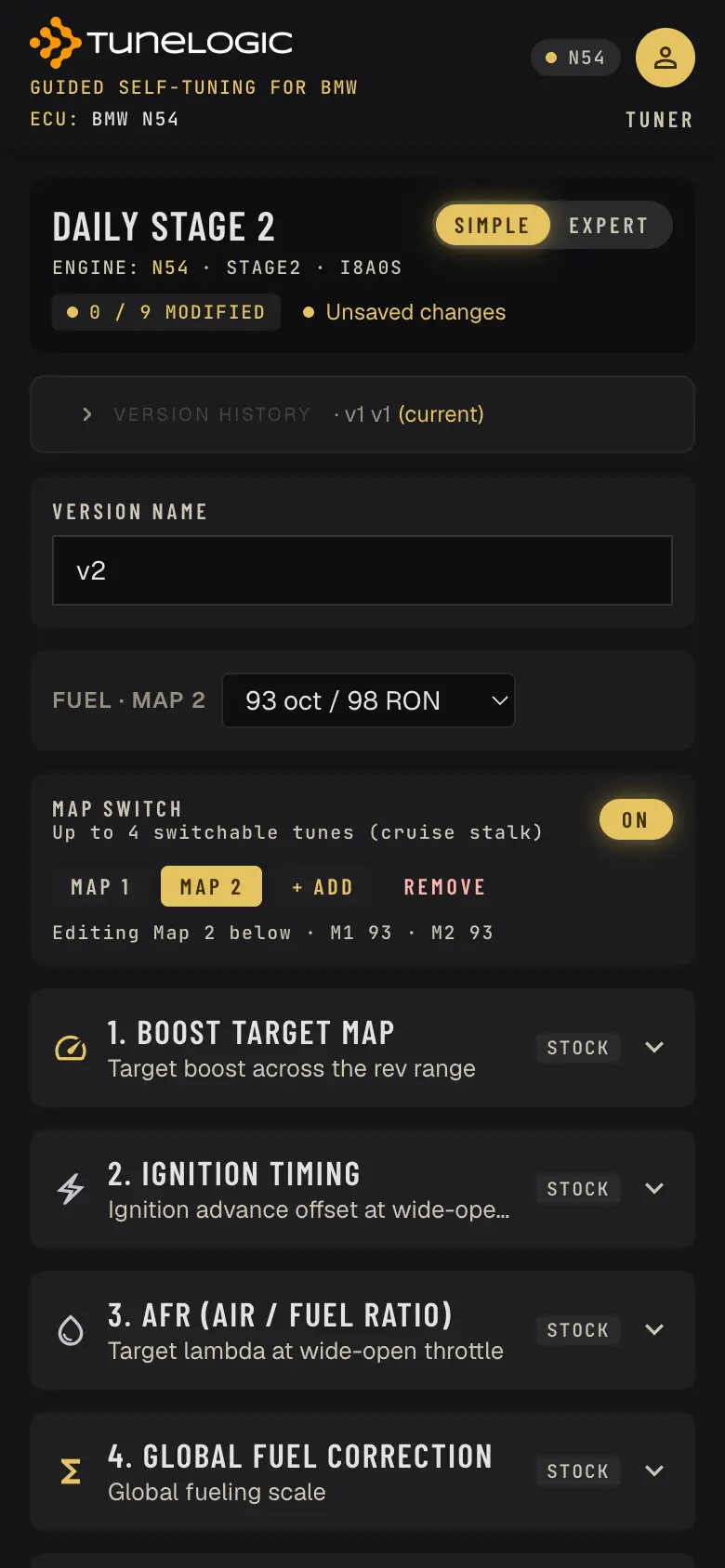
Tap a project to open the editor. At the top you see the project, engine, stage and DME software, how many settings you changed (“0 / 9 modified”) and whether your changes are saved. Changes save automatically as a draft a moment after you make them — but a draft is not a tune file yet (seeCreate and download).
Simple and Expert
Simple gives you the important controls in plain form — for example boost as “Peak boost” and “Hold boost @ 6k” with +/− buttons. Expert adds the full tables, a graph/table switch for every curve, dragging points, editing several table cells at once, flex fuel and the full ethanol calibration. You can switch any time; when you go back to Simple, expert-only settings are reset after you confirm.
Fuel
Choose what is in your tank: 91, 93 or 95 octane (US octane; 95/98/102 RON), a fixed ethanol blend(E20 up to E85 — no sensor needed, fill up with that mix), or flex fuel (Expert; needs an ethanol content sensor). With ethanol, boost, timing and fuelling follow the TuneLogic ethanol calibration of your stage; your edits change the pump-fuel part of the blend. On ethanol a Startup Enrichment setting appears (80–130 %, 100 % = our calibration) — raise it if the car starts poorly in the cold.
Map switching
Turn on Map Switch to put up to four tunes into one file and switch between them in the car with the cruise-control stalk. Each map has its own fuel, boost, ignition, AFR, fuel corrections and pops & flames; wastegate correction, DTC mute and final drive are shared. Use + Add and Remove; the buttons choose which map you are editing.
7. Every setting explained
Each section shows “Stock” (or “Stage default”) until you change it, then “Modified”. On curves, the dashed or gray line is the base map; tap a point to change it with −/+ or by typing (in Expert you can also drag).
1. Boost target map (psi)
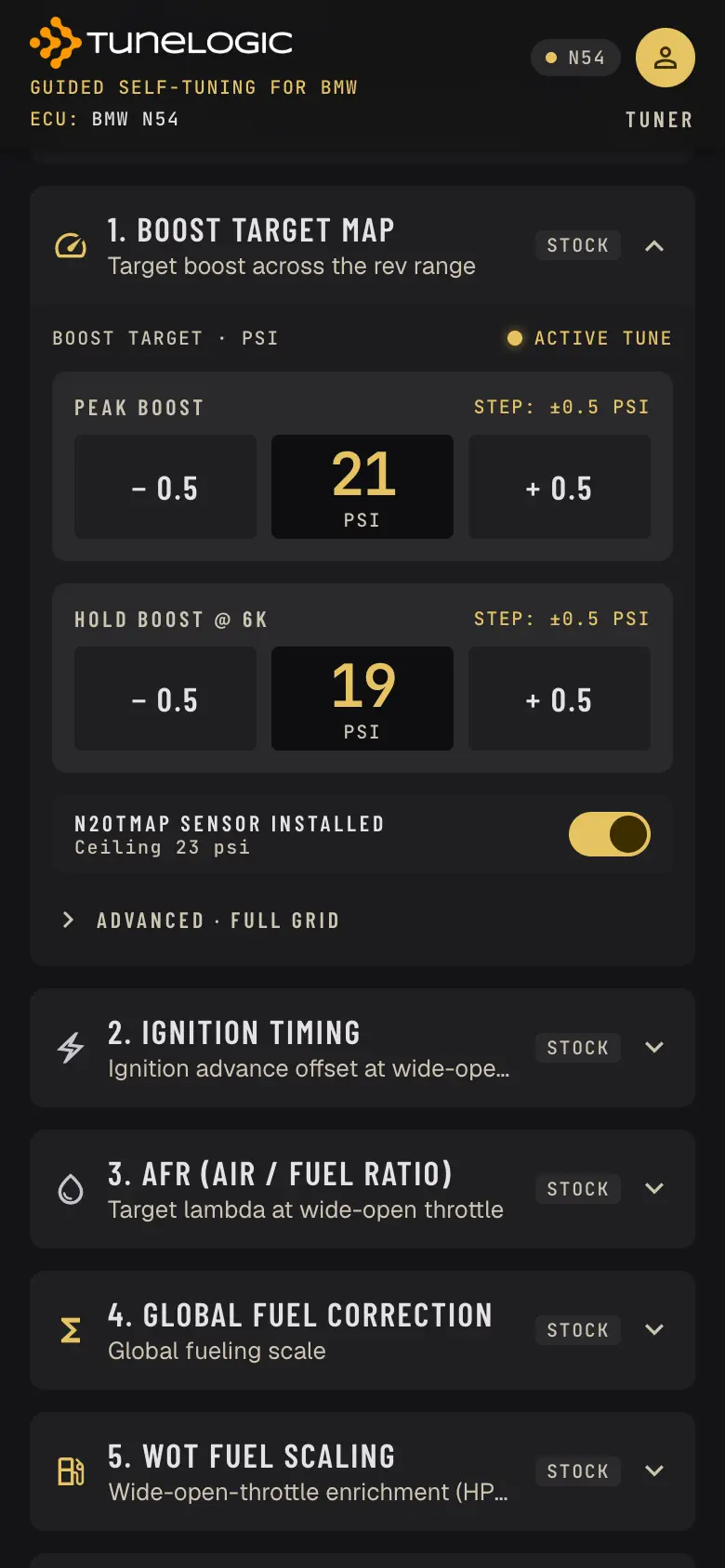
Target boost per gear and RPM. In Simple you shift the whole curve with Peak boost and the top end with Hold boost @ 6k (±0.5 psi per tap); Advanced · Full grid or Expert shows every cell, optionally per gear (Boost by Gear).
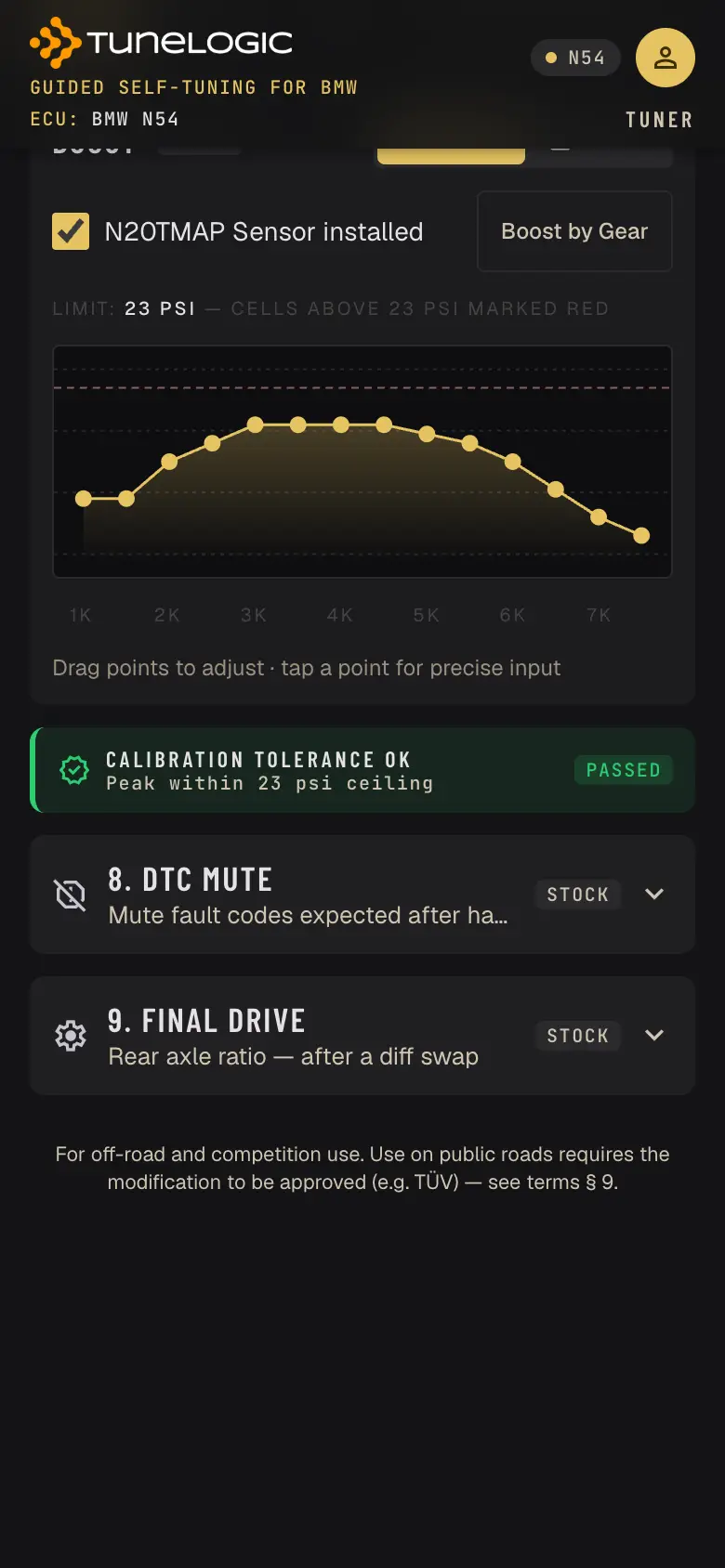
Limits: minimum 5 psi. With the N20 TMAP sensor option on (only if the sensor is fitted and enabled in the MHD Flash Options) the ceiling is 23 psi, on Stage 3 32 psi; without it 18.5 psi. Cells above the ceiling are marked and clipped.
2. Ignition timing (°)
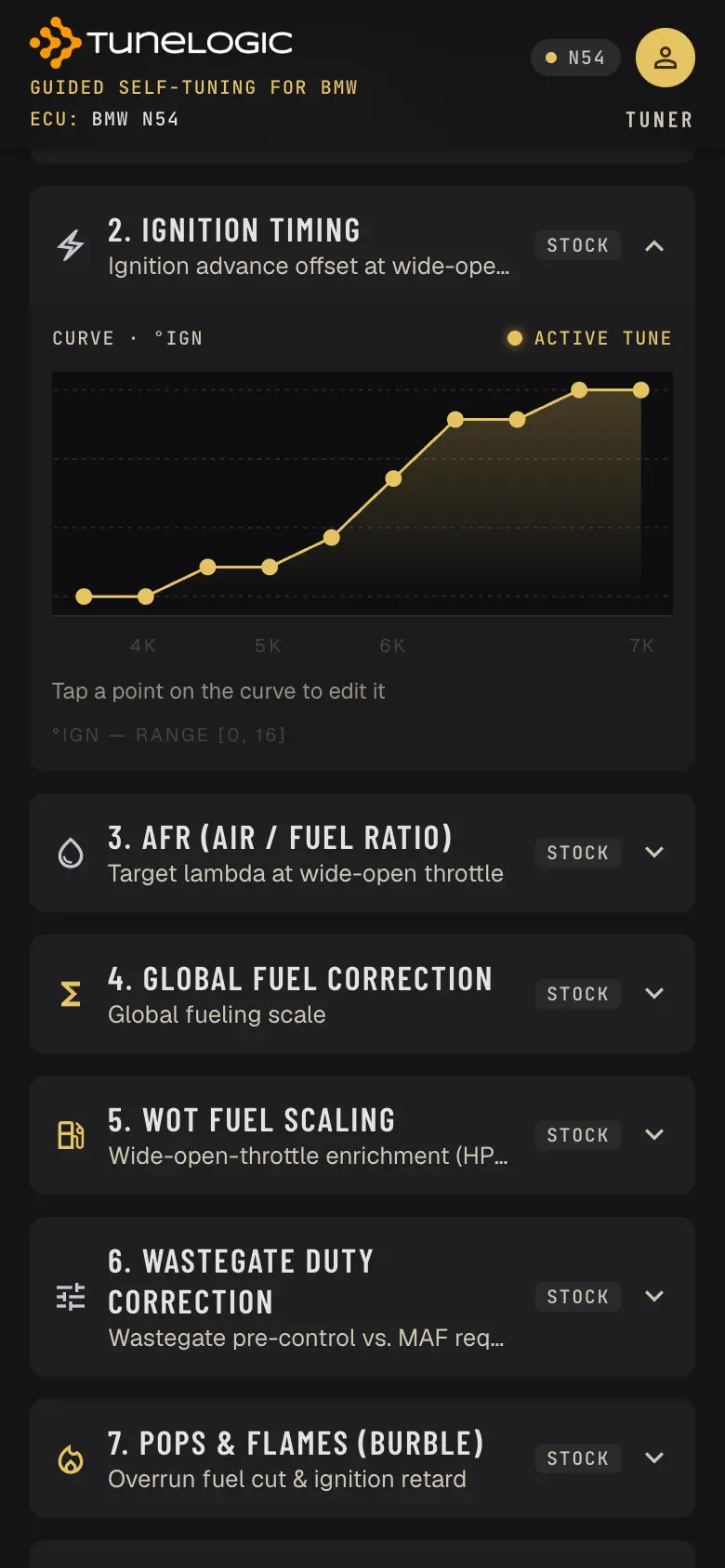
Ignition timing at full throttle from 3500 rpm, in degrees (0–16°, steps of 0.5°). Your change is applied to the full-load area of the timing map and keeps its shape.
Capped at 16°: more advance moves peak combustion pressure ahead of the optimum — power can drop while the engine is stressed more. The editor tells you when you reach it.
3. AFR (air/fuel ratio)
Target air/fuel ratio at full throttle from 3000 rpm, 11.0–14.0 AFR in steps of 0.1. Lower = richer.
4. Global fuel correction (%)
Corrects fuelling everywhere, −30 to +30 % (0 = no change) — for injector or fuel-quality differences. Ethanol is handled by the fuel selection, don't add it here. Tune idle and cruise first, then full load.
5. WOT fuel scaling (%)
Extra fuel at full throttle per RPM from 2500 rpm, −30 to +30 %. Together with the global correction the fuel scalar may reach 1.6× (or the stage's own peak if higher) — beyond that the editor shows “maxed out”, because the high-pressure fuel pump cannot deliver more.
Lean warning: taking fuel away by more than 20 % below the base map only makes sense with extra fuel from outside the direct injection (port injection or water-methanol injection). Without it the engine runs lean at full load.
6. Wastegate duty correction (%)
Wastegate pre-control against the MAF request, 50–150 % (100 = base map). Check your datalog for the MAF request (g/s) at full throttle to see which columns matter for your car. Shared by all maps.
7. Pops & flames
Off (default), soft pops, medium pops or flames on overrun between 3000 and 7000 rpm. The burble option in the MHD Flash Options must be disabled when you use this.
8. DTC mute
Mute fault codes you expect after hardware changes: type the hex codes (e.g. 2A0F, 2FAC) and choose Add; remove a code to unmute it. Muted codes are not stored or reported by the DME — muting hides a fault, it does not fix it.
Emission-related codes (catalyst, oxygen/lambda sensors, mixture control) cannot be muted.
9. Final drive
Only after a differential swap: enter the new rear-axle ratio (2.00–5.00). “Reset to stock” restores your ROM's ratio.
Expert mode
Expert shows section chips to jump between settings, a graph/table switch per setting and a calibration check (“Passed” / “Check”) under each one. In the table view you can select several cells and change them together.
8. Create and download your tune
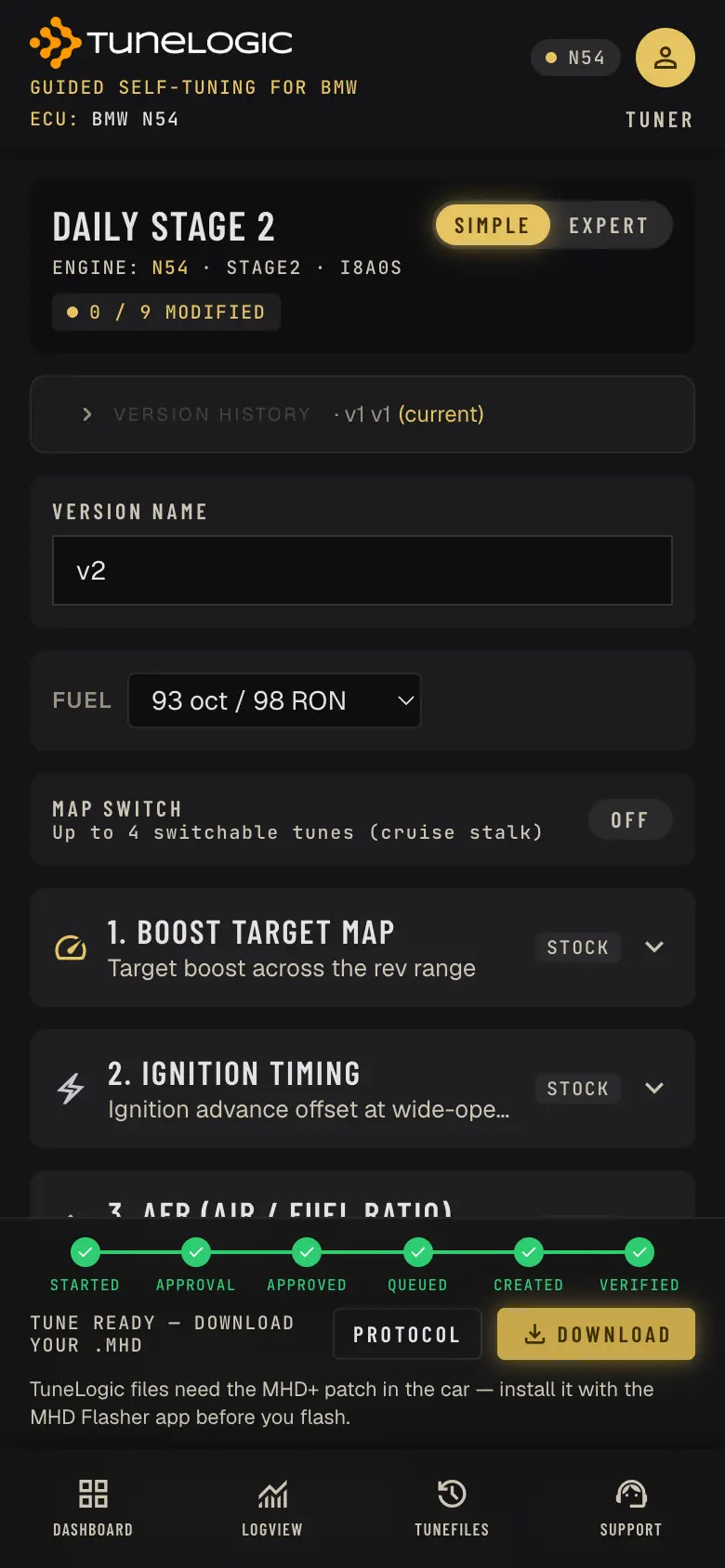
Give the version a name (or keep “v2”, “v3” …) and choose Create Tune (.mhd). This freezes your settings as a new version and creates the encrypted .mhd file for your car. A progress bar shows the steps (started, approval, queued, created, verified); usually it takes a few seconds. If many tunes are queued, it shows the expected time — we email you when your file is ready, so you can close the page.
When it is ready, choose Download. One tune can be created at a time per account (up to 30 per hour). Creating a file needs an internet connection; in the TuneLogic app, editing and the log viewer also work offline.
9. Flash it with MHD
- Copy the .mhd file to the phone or tablet that runs the MHD Flasher app (downloading it there directly is easiest).
- Make sure the MHD+ patch is installed on the car. TuneLogic files need the MHD+ patch in the car — install it with the MHD Flasher app before you flash.
- Set the MHD Flash Options to match your tune: the N20 TMAP sensor enabled if you use that option, the burble option disabled if you use pops & flames, and a flex fuel sensor configured if you chose flex fuel.
- Connect a battery charger or support unit and follow the MHD app to flash the custom map file.
- After flashing: drive gently first, then log a full-throttle pull and review it (next section) before any high-load driving.
10. Log and review
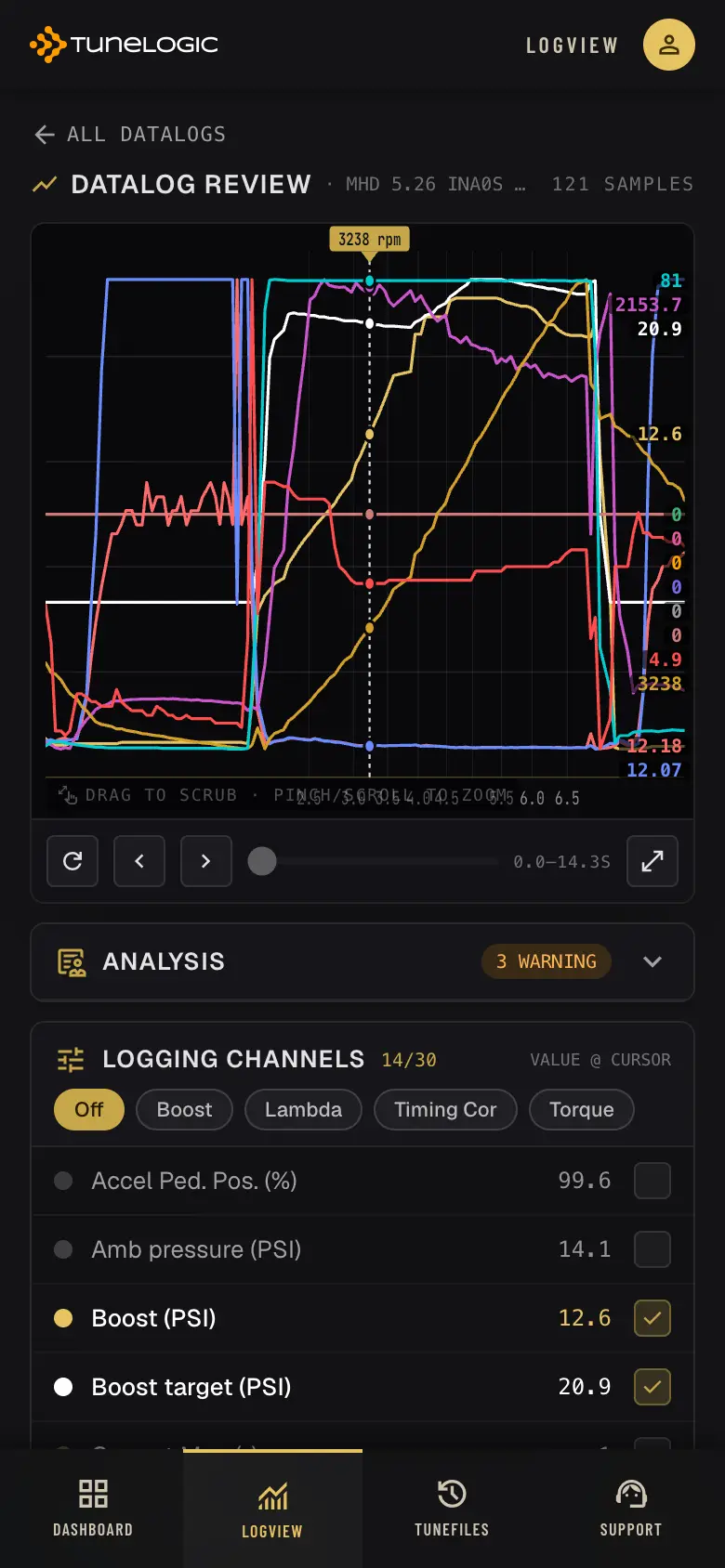
Record a datalog in the MHD app (a full-throttle pull, ideally in 4th or 5th gear on a flat road) and upload the .csv in LogView. Up to 1 MB per log (about 9 minutes) and 100 saved logs; a larger log is still shown, just not saved.
- Graph: drag to scrub, pinch or scroll to zoom, rotate for landscape. The channel list shows each value at the cursor; quick presets show boost, lambda, timing corrections or torque.
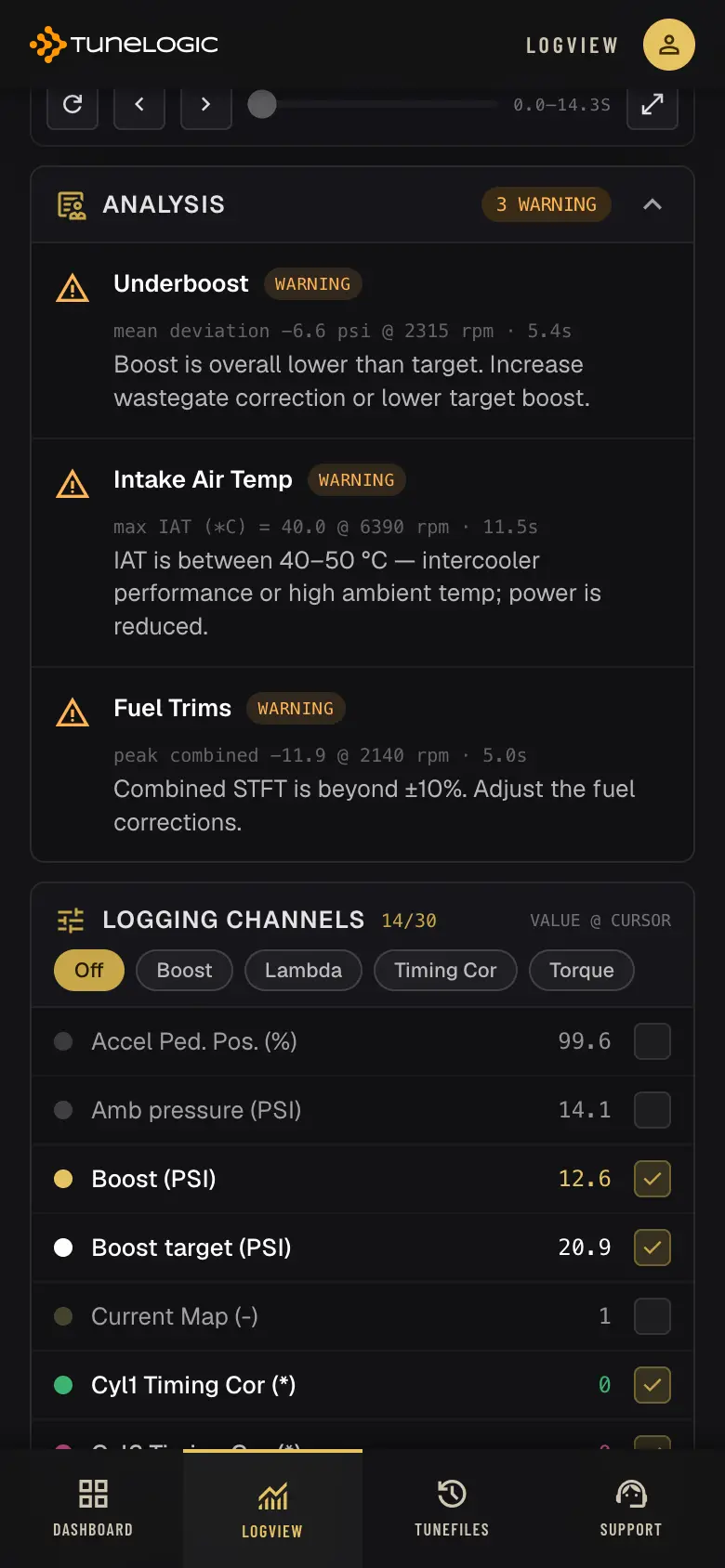
- Analysis: every log is checked automatically — rail pressure, over- and underboost, knock corrections, intake air temperature, gearbox and traction control limits, fuel trims and the balance between banks — with a short explanation and what to adjust.
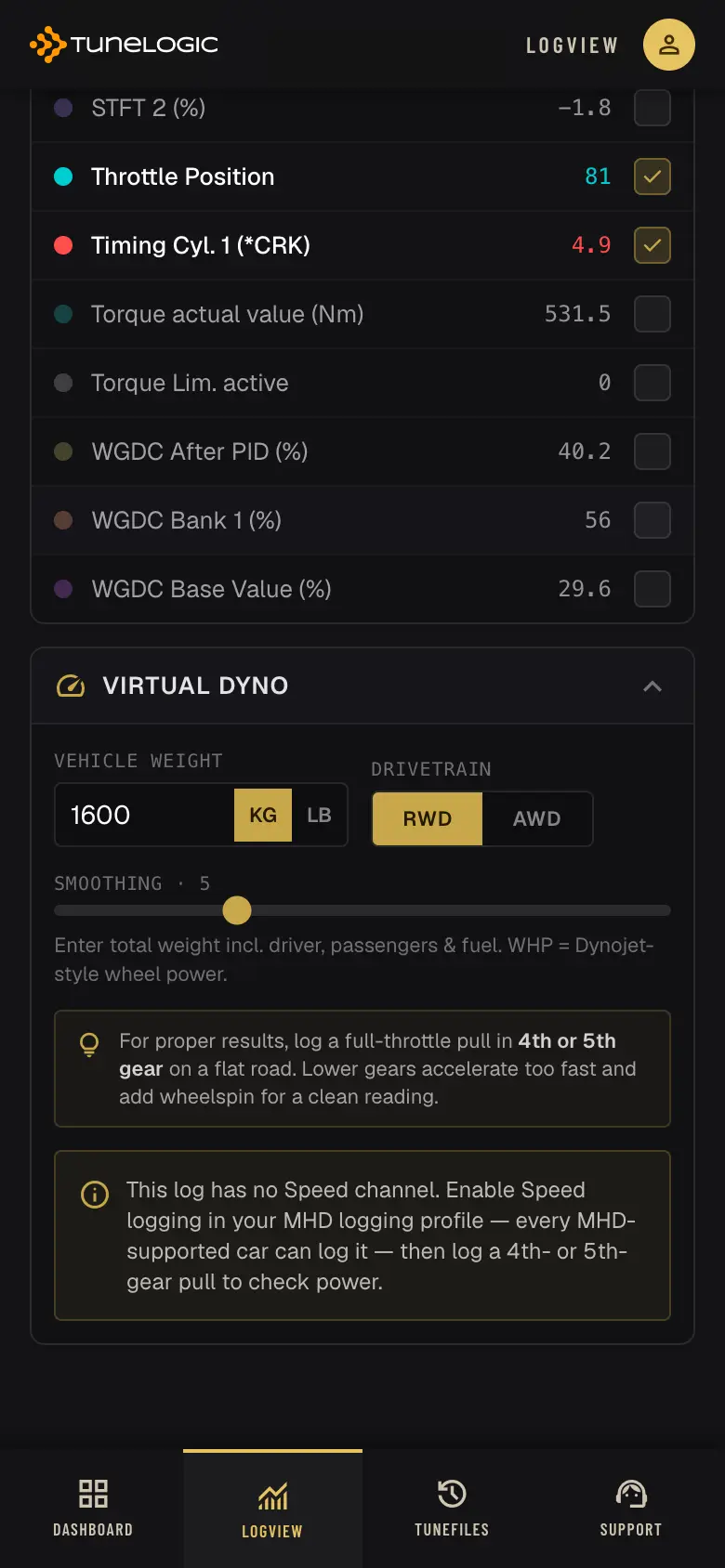
- Virtual dyno: enter the car's total weight (with driver and fuel) and RWD/AWD. It estimates crank power, wheel power (Dynojet-style) and torque from a clean full-throttle pull in one gear. It needs the Speed channel — enable it in your MHD logging profile. The curve shape is reliable; absolute figures scale with the weight you enter.
11. Versions, protocol and tune files
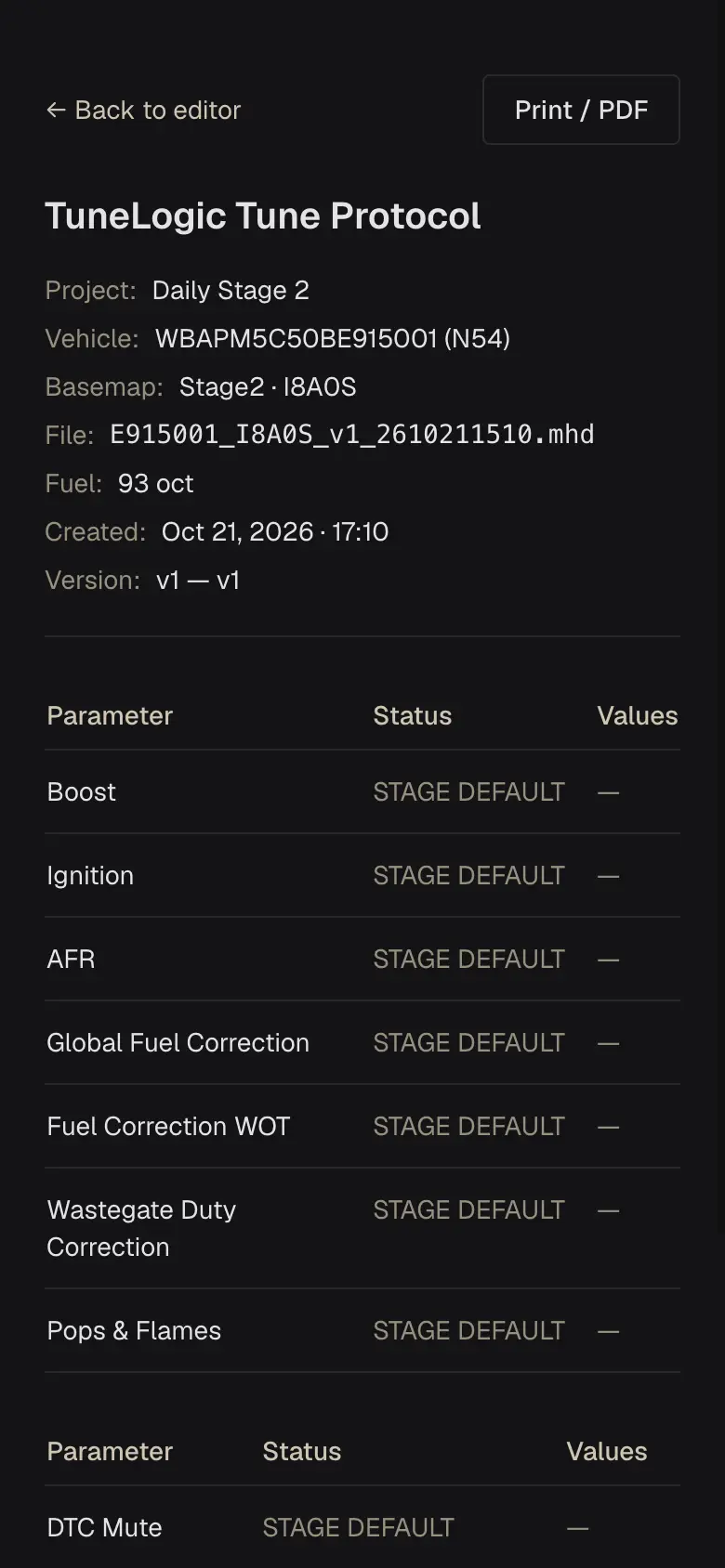
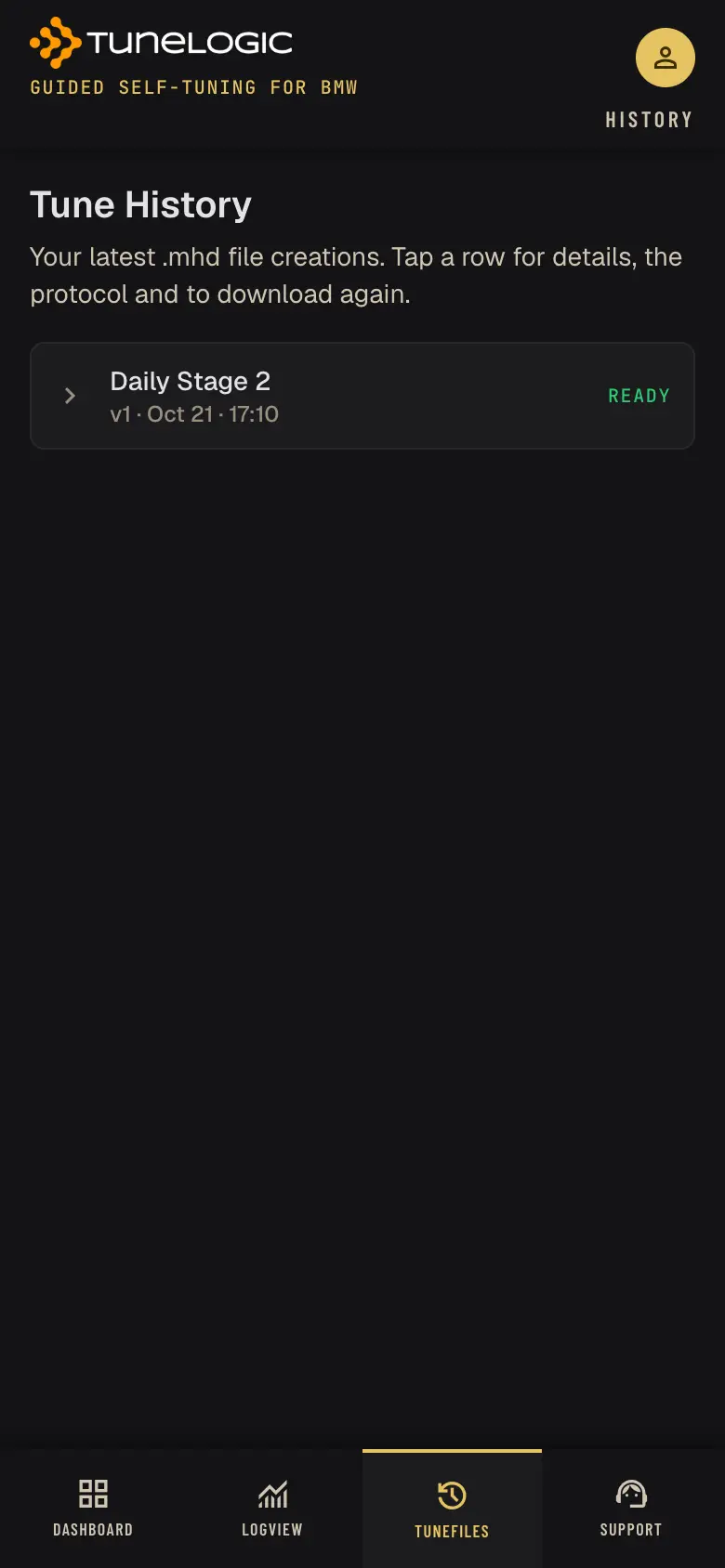
Every Create Tune makes a version; Version history in the editor lists them — load an older one to go back. The protocol of a version lists every setting (modified or stage default), the fuel per map and the file name, and can be printed or saved as PDF. Tune files lists your recent files with their status; tap one to download it again.
12. Your account and support
- Password: change it under Account — this signs you out on every other device.
- Two-factor authentication (optional): Account → Set up, scan the QR code with an authenticator app and enter its code. Keep the recovery codes safe; each works once if your phone is lost.
- Delete account: under Account (or by email to support). It removes projects, versions, tune files and logs; your licences end with the account. Purchase records are kept for the legal retention period.
- Support: the form under Support, or [email protected]. You get a confirmation by email and we reply to the same address.
13. Troubleshooting
“Please confirm your email address before adding a car”
Open the link in our email, or request a new one on the Add car page or under Account.
“Your account is waiting for approval”
During the launch phase we activate accounts by hand — you get an email. Your licence code stays valid.
“No license matches this code”
Check the code from your email; case, spaces and dashes don't matter. After 10 wrong attempts within an hour, wait an hour.
“Another .mhd file is already being created for you”
Wait until the current file is ready (you get an email), then create the next one.
A value turns red or says “maxed out”
You reached a safety limit (boost ceiling, 16° timing, fuel scalar 1.6×). The file is built at the limit, not beyond it. Higher-octane fuel or supporting hardware is the way past it, not a bigger number.
The virtual dyno shows no result
The log needs the Speed and RPM channels and a clean full-throttle pull in one gear.
The tune file could not be created
Open the project and create the tune again. If it fails again, contact support with the build reference from the email.